
Chrome
Multi-seat Chrome web browser
Requires MouseMux running on Windows. Get it free.
Chrome MouseMux Compliant Edition
Latest revision: August 2026 — Build #56 — Chromium 151.0.7922.77
New in Build #56: rebased onto Chromium 151. Builds up to #55 were based on Chromium 146.0.7650.0. This build moves five major Chromium versions forward, picking up everything upstream changed in between — security fixes, rendering and performance work included.
The MouseMux functionality is unchanged. No features were added or removed; the work was in adapting the integration to Chromium API changes. If you are upgrading from #55 and something behaves differently, it is worth reporting, because it was not an intended change.
Multi-Seat Web Browser
The Chrome MouseMux Compliant Edition enables multiple users to each run their own independent browser session on a single computer. Each user can “claim” a browser window, getting their own cursor and full control over their browsing experience. This creates a true multi-seat browsing environment where several people can simultaneously browse the web, each with complete independence, all on one machine.
About Chrome
Google Chrome is a fast, secure, and widely-used web browser developed by Google. Since its launch in 2008, Chrome has become one of the most popular browsers worldwide, known for its speed, simplicity, and powerful developer tools. It offers comprehensive features including tabbed browsing, a vast extension ecosystem through the Chrome Web Store, built-in security protections, seamless Google account integration, and sync capabilities across devices.
Chrome is built on the open-source Chromium project, which is freely available under various open-source licenses. Google’s continuous development ensures Chrome stays at the forefront of web standards, performance optimization, and security updates.
Our MouseMux-specific modifications enable the multi-seat functionality while preserving everything that makes Chrome great. The changes are focused on allowing MouseMux to manage multiple independent browser sessions, each claimed by a different user.
How It Works
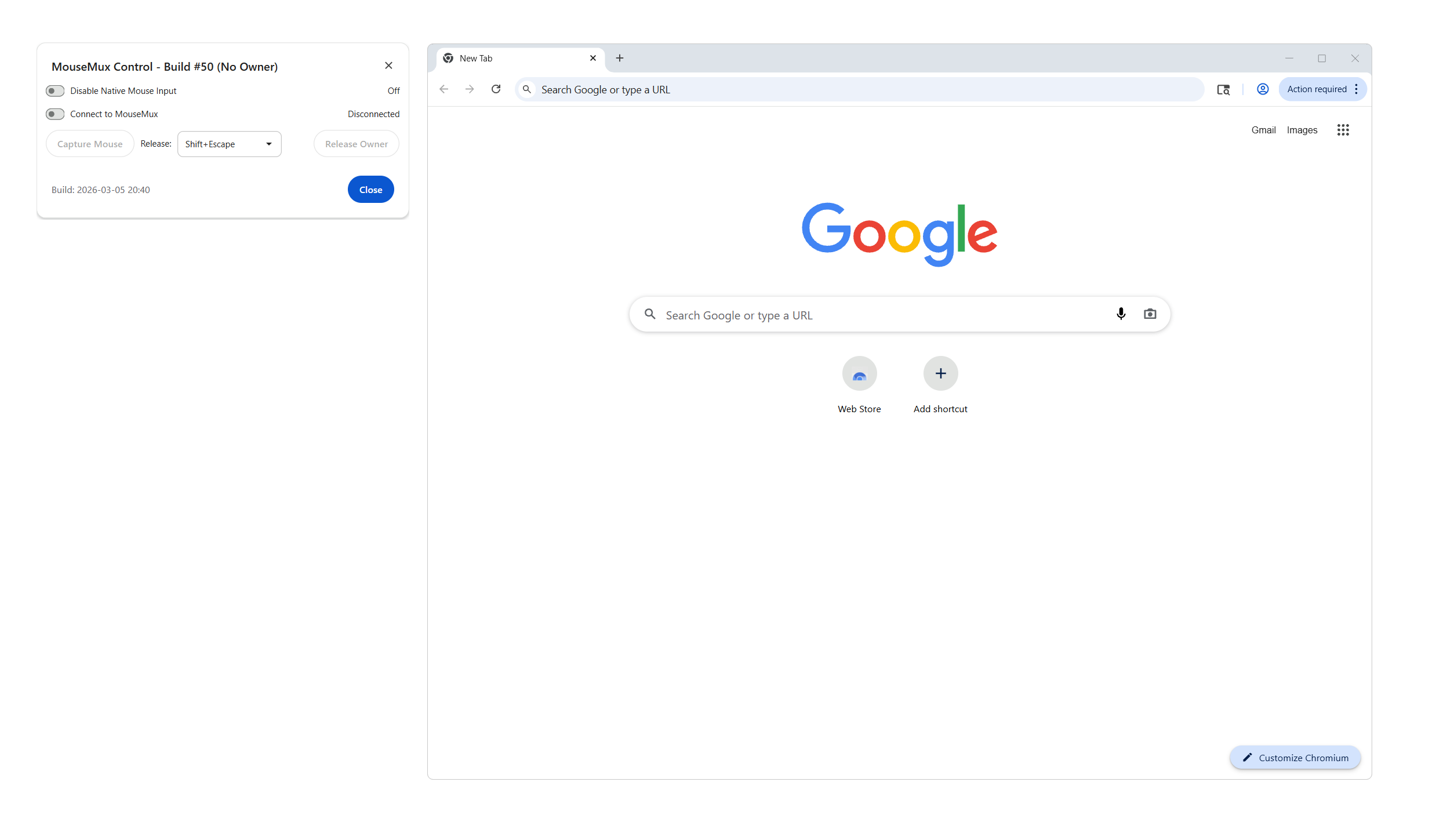
When you launch Chrome with MouseMux integration enabled, a small MouseMux Control Dialog appears alongside the browser. This dialog shows connection status and provides controls for multi-seat operation.
Any connected user can claim the browser window by clicking on it. Once claimed, that browser instance belongs to that user.
To enter full multi-seat mode, the owner clicks Capture Mouse. This tells MouseMux to route the owner’s physical mouse and keyboard exclusively to this Chrome window. All mouse input is directed at this window and all keyboard input is sent here, regardless of where the cursor is on screen. No other user can accidentally interact with your window. Each user captures their own Chrome window, and everyone works independently on the same machine — a true multi-seat setup.
Other users can launch additional Chrome instances and claim those for themselves. Each person ends up with their own browser, their own tabs, their own history for that session, and their own cursor controlling it all. The browsers run independently. One user’s actions don’t affect another user’s session.
This differs fundamentally from simply sharing a browser. In traditional shared browsing, everyone fights over the same cursor, the same tabs, the same session. With the MouseMux Compliant Edition, each person has genuine independence. It’s like having multiple computers, but on a single machine.
MouseMux Control Dialog
The control dialog provides the following controls:
MouseMux Connection (toggle) — Connects to the MouseMux server. Must be on for multi-seat features to work.
Native Input Blocking (toggle) — Prevents the operating system’s own mouse and keyboard events from reaching the browser. This is turned on automatically when you enter capture mode, ensuring only your dedicated input reaches the page without duplication.
Capture Mouse (button) — Enters capture mode. MouseMux routes your physical mouse and keyboard exclusively to this browser window. All your mouse input is directed at this window and all your keyboard input is sent here. No other user can interact with your window while captured. The button changes to “Release Capture” while active.
Release Owner (button) — Gives up your claim on this browser window, making it available for anyone to use.
Release Hotkey (dropdown) — Choose which keyboard shortcut exits capture mode (default: Shift+Escape). Use this when you need to release your mouse and keyboard from the window.
Normal Mode vs Capture Mode
In normal mode (after claiming, before capturing), your mouse controls the browser but still moves freely across the screen. Other users could accidentally click on your window.
In capture mode, all your mouse and keyboard input is routed exclusively to this browser window. Other users cannot interfere with your session. This is the recommended way to use Chrome in a multi-seat environment.
To exit capture mode, press the release hotkey (default: Shift+Escape).
Running Several Seats
Chrome will not start a second browser against a profile that is already open — it hands the command line to the running instance and exits. Each seat therefore needs its own profile, which is what launcher.exe is for.
Run launcher.exe and it starts the next free seat. Run it again for another, and so on up to 64. Each seat gets its own profile, its own control port, and its own cascaded window, so the seats stay visually distinct.
| Command | Effect |
|---|---|
launcher | start the next free seat |
launcher -s 3 | start seat 3 specifically |
launcher -n 4 | start four seats |
launcher -k | keep each profile’s saved window position |
launcher -h | full options |
Running the launcher always starts a new seat rather than switching to a running one, so double-clicking it twice gives you two browsers.
Two things worth knowing about how it behaves:
The launcher stays running while its browser is open. It does not start Chrome and exit — it holds the seat for as long as the browser lives, and closes once that browser does. This is how a seat is marked in use, and it means a seat is freed correctly even if the browser is killed rather than closed. One launcher process belongs to each launch; launcher -n 4 is a single launcher holding four seats, which exits when the last of them closes. If you drive the launcher from a script, expect it to block until the browsers are closed.
Each launch takes about three seconds before reporting ready. The launcher waits to confirm the browser actually took the seat rather than handing its command line to an instance that already had the profile open. That wait is what makes running out of seats, or pointing the launcher at profiles already in use, report a clear error instead of silently opening nothing.
The Control Dialog
Each seat has its own control dialog, positioned beside the browser window it belongs to.
Collapse shrinks it to a small strip showing just the MouseMux icon and an Expand button, for when it is in the way. Clicking Expand brings the whole dialog back. The strip stays where you left the dialog.
The build number and date appear in the lower left of the dialog, which is the quickest way to confirm which build is running.
Pen and Touch Input
Experimental in Build #56 — not yet verified on hardware.
MouseMux sends pen and touch devices down a separate channel from mice, carrying pressure, tilt and barrel rotation. This build receives that channel and delivers it to web pages as pointer input: a page reads pointerType as "pen" or "touch", along with pressure, tiltX, tiltY and twist values. A touchpad is deliberately reported as a mouse, since it moves a cursor rather than making contact with the screen.
This has not been confirmed on a pen tablet or touchscreen. Treat it as untested rather than as a working feature.
Native input blocking deliberately does not cover pen and touch in this build. Windows delivers those through a different message family than mouse input, and suppressing that family is only safe once injection is known to work — if it did not, a touchscreen would stop responding entirely, with no way back short of restarting the browser. So while native input blocking is on, a pen or touchscreen keeps working through the normal Windows path. That is weaker isolation, and a far safer failure mode.
Two limits worth knowing:
- Input arrives as pointer events, not touch events. Multi-touch gestures — pinch to zoom, two-finger scrolling, fling — do not work. Sites built around touch gestures, such as map interfaces, will not respond to them.
- Pen movement is sampled rather than continuous, so extremely fast strokes may show slight angularity.
Use Cases
Shared Workstations. In offices or labs where multiple people share a single computer, each person can have their own browser session. No need to log out, close tabs, or worry about someone else seeing your browsing. Claim a browser, do your work, release it when done.
Computer Labs and Libraries. Educational institutions can set up workstations where multiple students work simultaneously. Each student claims their own Chrome instance for research, assignments, or general browsing. Instructors can browse alongside students, looking up reference materials or demonstrating techniques.
Collaborative Research. Research teams can work together on a shared workstation, each person browsing different sources, comparing information, and gathering materials. Everyone sees their own browser with their own cursor, but they’re all in the same physical space, able to discuss and share findings in real-time.
Family Computers. A shared family computer becomes more practical when each family member can have their own browser session running simultaneously. Parents and children can browse independently without interfering with each other’s sessions.
Kiosk and Display Systems. Multi-user kiosks can serve several people at once. Each user claims a browser instance and browses independently. When they walk away, the session can be released for the next user.
Training and Demonstrations. Trainers can browse reference materials while trainees follow along in their own browser instances. Everyone participates actively rather than passively watching a single shared screen.
Technical Details
Each Chrome instance runs as a separate process with its own profile space. MouseMux tracks which user has claimed each browser window and routes input accordingly. When User A moves their cursor over their claimed Chrome window and clicks, that click goes to their browser. User B’s cursor and input go to their own claimed browser, even if both browsers are visible on screen.
The claim system uses MouseMux’s window ownership model. A user can claim an unclaimed window by interacting with it (the specific mechanism depends on your MouseMux configuration, typically clicking or using a hotkey). Once claimed, the window responds only to that user’s input until released or until the user disconnects.
Browser sessions are isolated from each other. Each instance maintains its own: - Open tabs and browsing history - Cookies and site data (for the session) - Download queue - Extension state - Form data and autofill
This isolation means one user’s browsing doesn’t leak into another’s experience.
Performance Considerations
Running multiple browser instances requires more system resources than a single browser. Each Chrome instance consumes memory for its tabs, media, and rendering. Modern systems handle this well, but keep the following in mind:
- Memory: Each Chrome instance uses 200-500MB base, plus additional memory per tab
- CPU: Multiple browsers increase CPU load, especially with media-heavy sites
- Recommended: 16GB RAM for 3-4 simultaneous browser instances with moderate tab counts
- Minimum: 8GB RAM for 2 browser instances with light usage
For optimal performance, close unused tabs and browser instances when not needed.
Getting Started
- Ensure MouseMux is running — MouseMux V3 (3.0.x series)
- Run launcher.exe (or launch.bat for a single seat)
- The MouseMux Control Dialog appears — turn on the MouseMux Connection toggle
- Click anywhere in the browser window to claim it as yours
- Click Capture Mouse to route your mouse and keyboard exclusively to this window
- Browse normally — you have full control of this browser
- Press the release hotkey (default: Shift+Escape) when you want to release
- Other users do the same with their own Chrome windows
Privacy and Session Management
Each browser session is independent, but be aware that:
- Sessions are temporary by default; closing the browser clears session data
- For persistent profiles, configure Chrome profiles separately
- Users should log out of sensitive sites before releasing a browser
- Browser history and cookies exist only for the duration of the session unless configured otherwise
For shared environments, consider enabling Chrome’s Guest mode or configuring session cleanup policies.
Chrome is a trademark of Google LLC. The MouseMux Compliant Edition is a derivative work created to enable multi-seat browser functionality. This distribution includes Chrome binaries along with MouseMux integration components.