
OBS Control Console
Multi-user OBS production control console
Requires MouseMux running on Windows. Get it free.
OBS Control Console Beta
Multi-user OBS production control console.
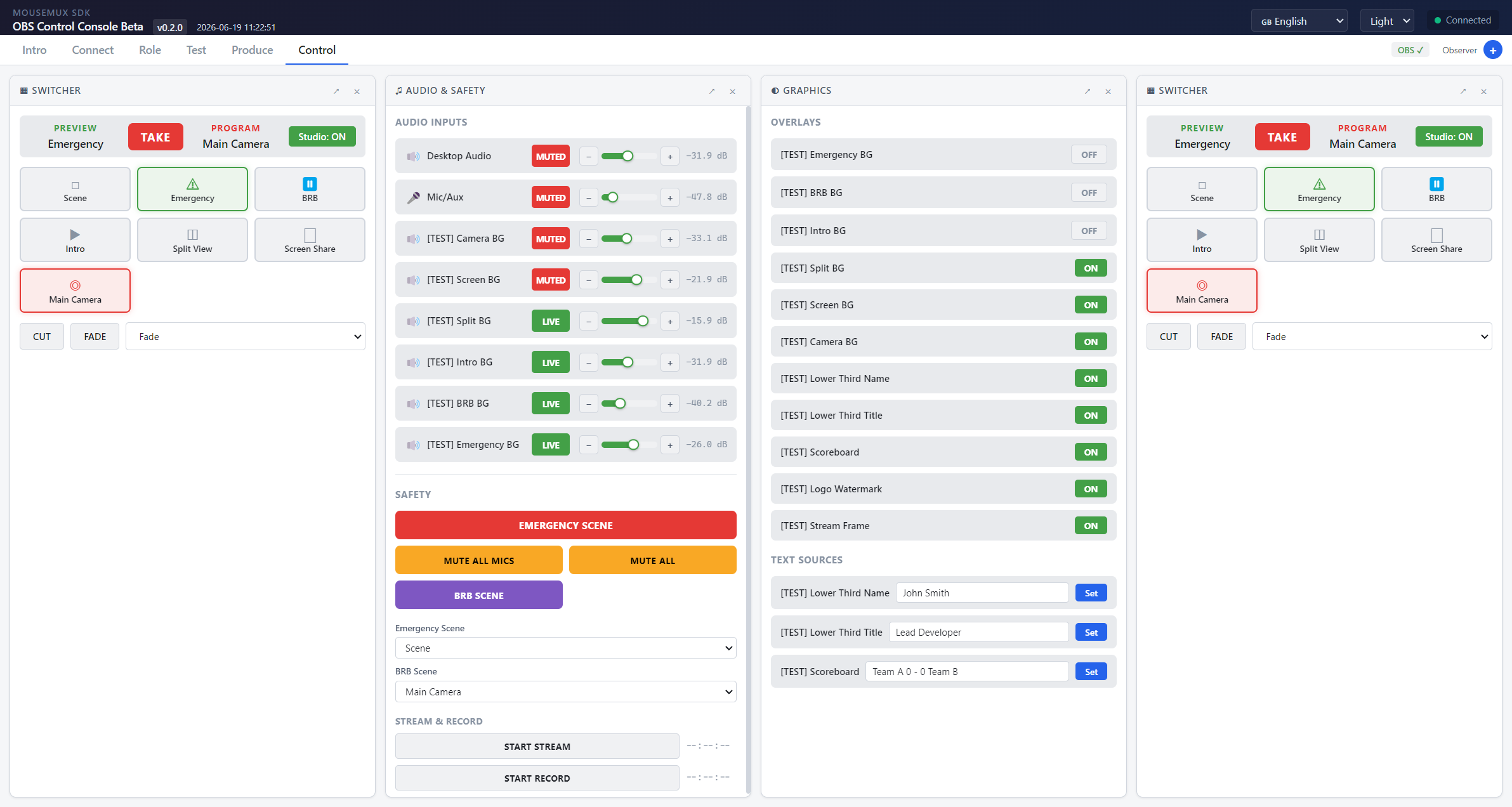
What This Is
A collaborative production control console for OBS Studio. Multiple operators can connect to the same OBS instance through MouseMux and control different aspects of a live broadcast: one person switches scenes, another manages audio, and someone else handles overlays. Each operator picks a role and gets access to the controls they need.
How It Works
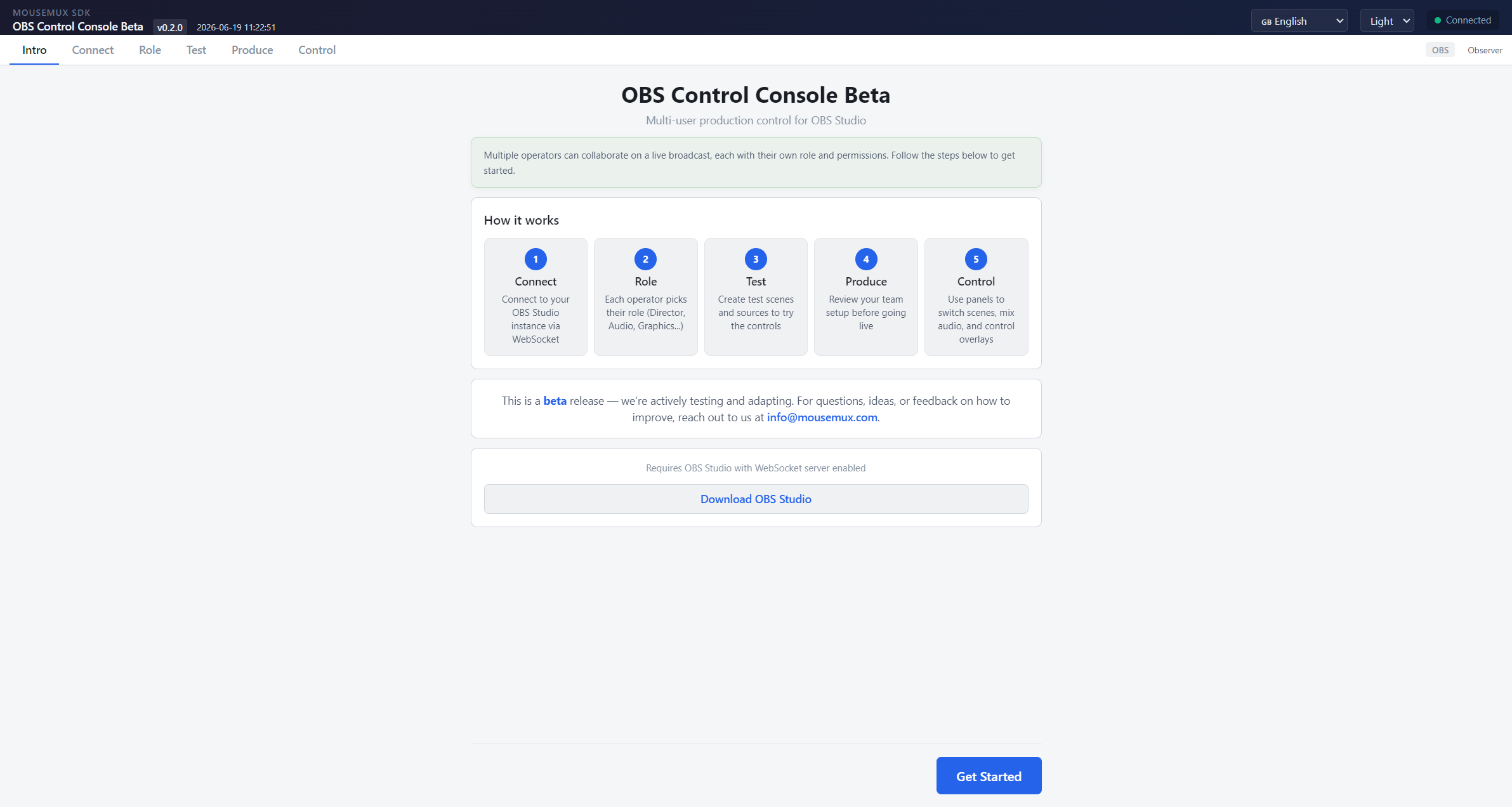
The app connects to OBS Studio via the OBS WebSocket protocol. Once connected, operators follow a guided workflow:
- Connect: Enter the OBS WebSocket host, port, and optional password. If OBS is running locally, the defaults (127.0.0.1:4455) work out of the box.
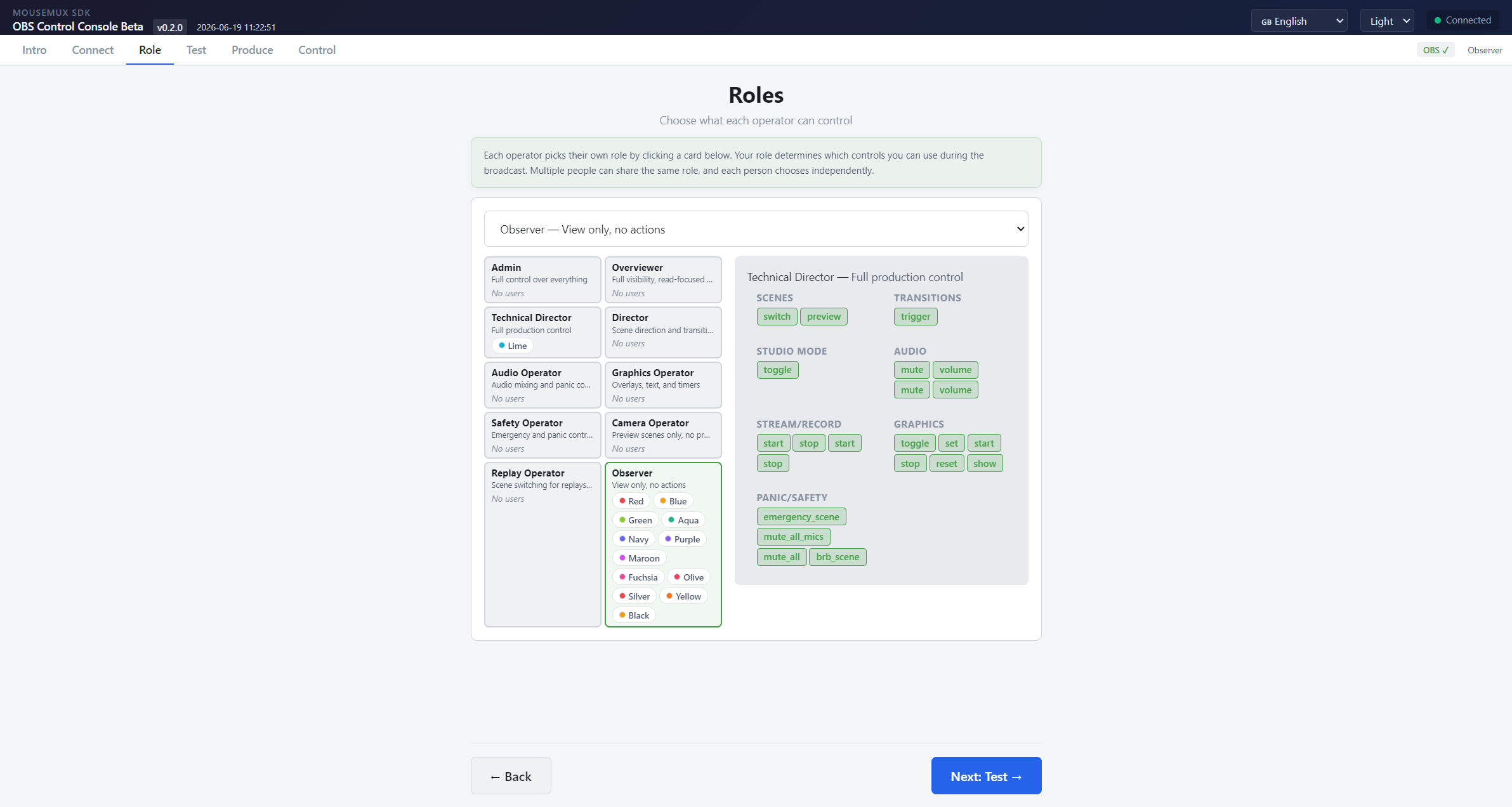
- Role: Each operator picks their role: Director, Audio, Graphics, or others. Roles determine which panels and controls are available.
- Test: Create test scenes and sources to verify the controls work before going live.
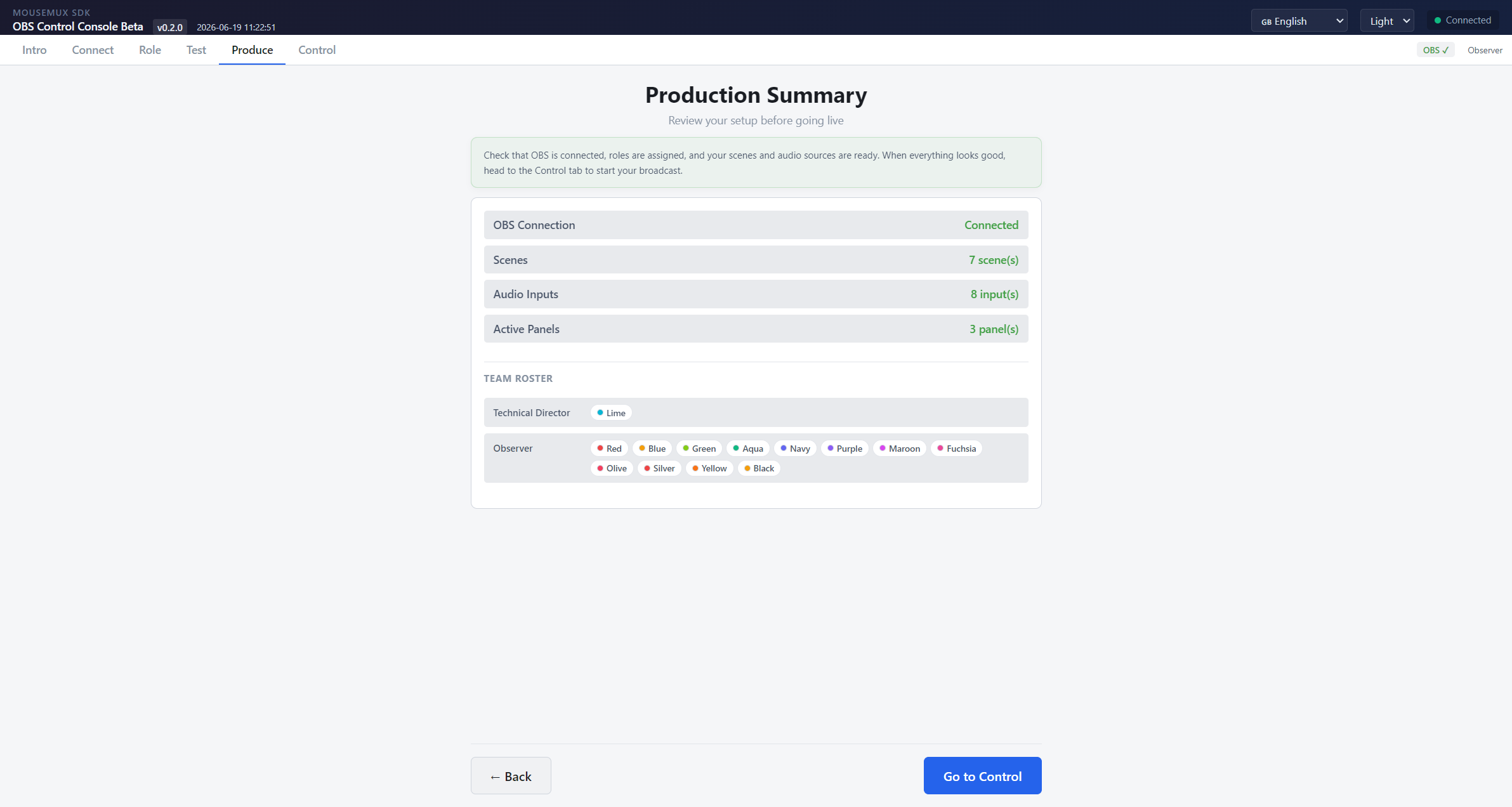
- Produce: Review the team setup and confirm everyone is ready.
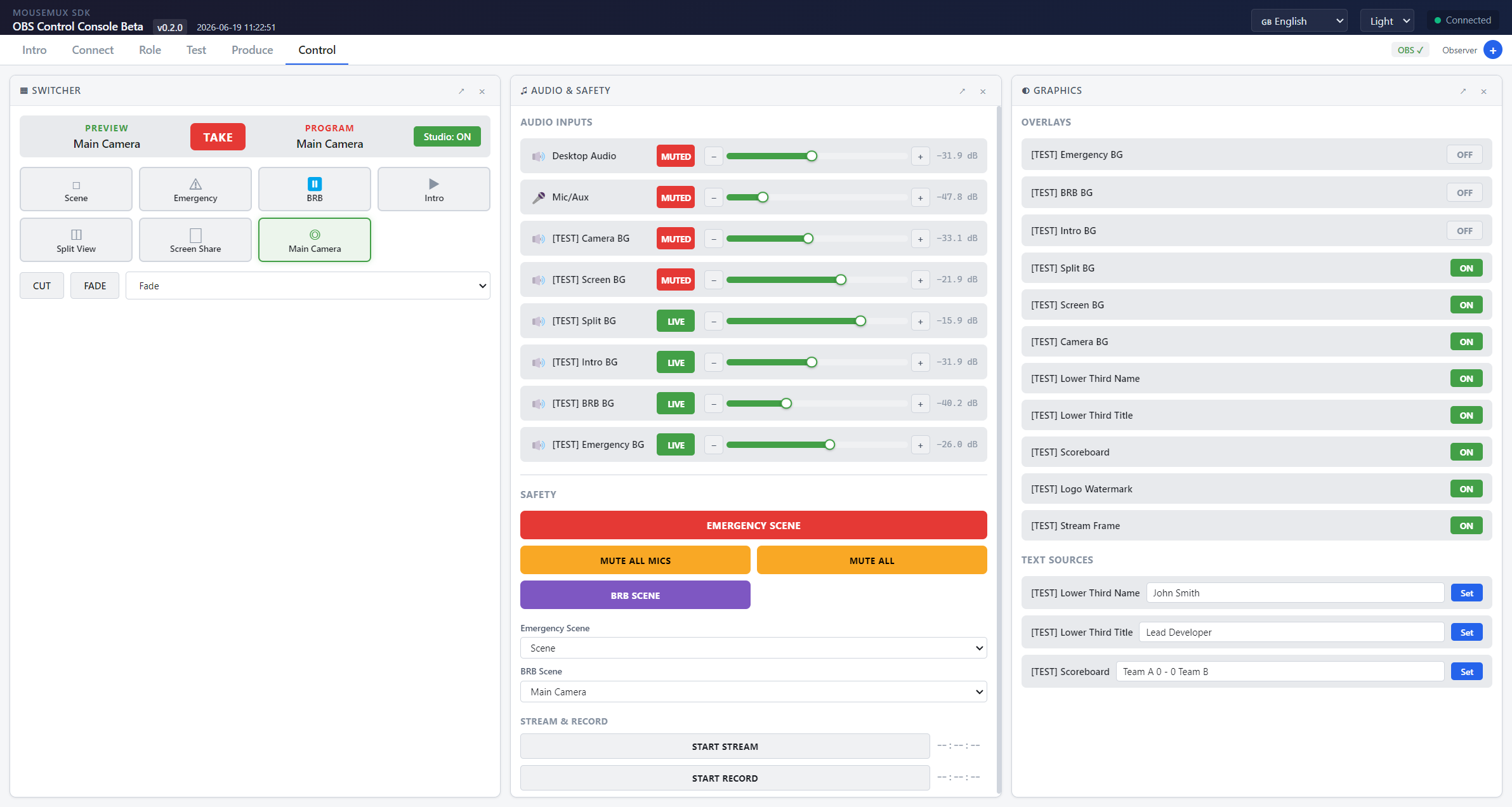
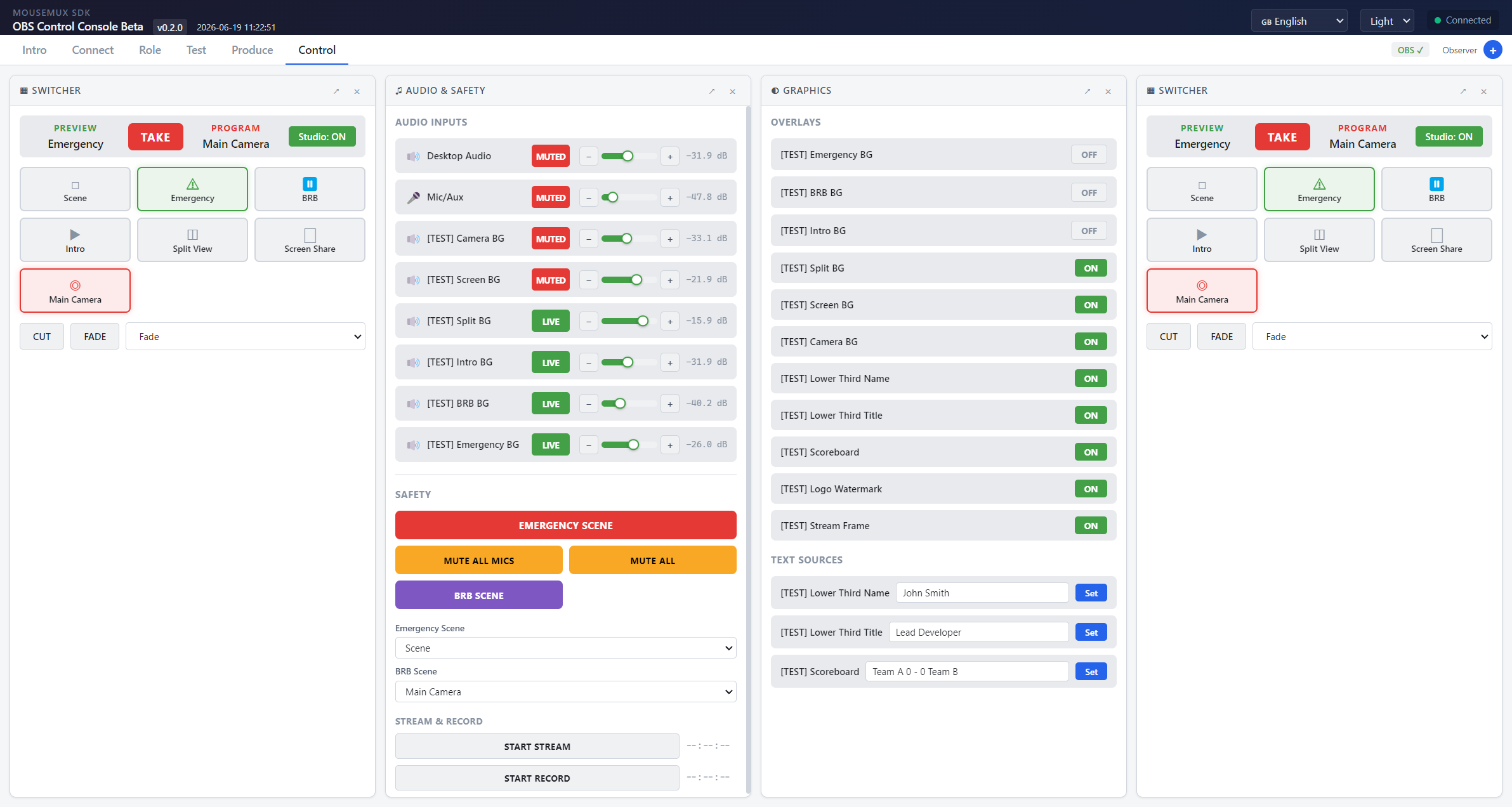
- Control: Use draggable popout panels to switch scenes, mix audio, trigger hotkeys, and manage sources during the broadcast.
The top bar shows the OBS connection status, live/recording badges, and a presence indicator showing which operators are connected. Panels can be added, moved, and arranged to fit each operator’s workflow.
Screenshots
Getting Started
Make sure OBS Studio is running with the WebSocket server enabled (Tools > WebSocket Server Settings). Launch the app from the MouseMux launcher, follow the Intro tab to connect to OBS, pick your role, and start controlling. Use MouseMux in Switched mode so each operator gets their own independent cursor.
MouseMux Development Team · https://www.mousemux.com