
Service Desk (POS)
Showcase - dual-screen service desk and point-of-sale (POS) workflow
Requires MouseMux running on Windows. Get it free.
Service Desk (POS)
Dual-screen customer service and point-of-sale app where an advisor guides a customer through forms and workflows.
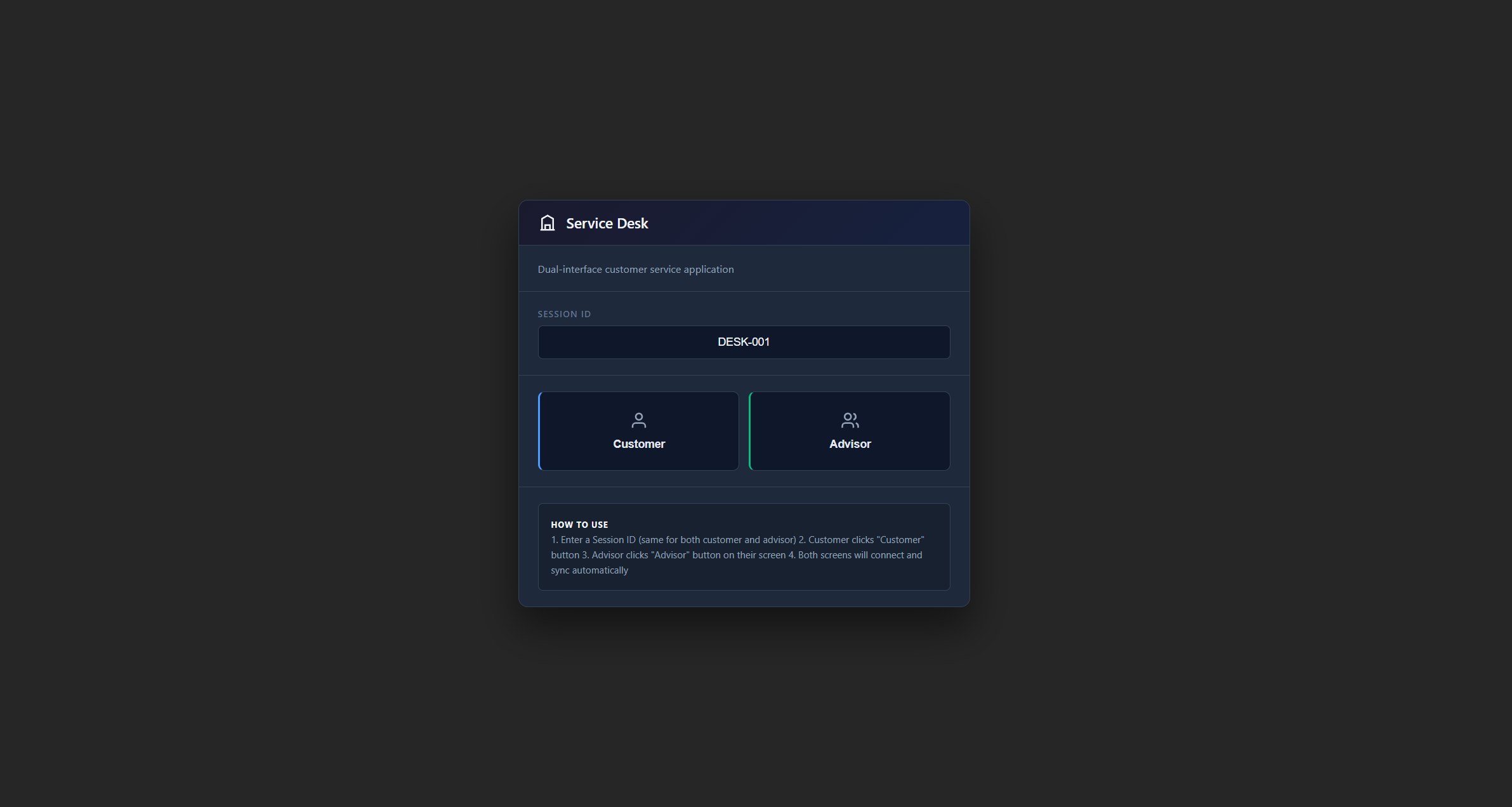
What This Is
An app designed for customer service situations where you have two screens - one for the advisor and one for the customer. The advisor controls what the customer sees and guides them through different steps like filling out forms, verifying ID, or signing documents digitally. Everything syncs between the two screens in real-time using the browser’s built-in communication channels, so you don’t need any server setup - it all runs client-side.
The same two-sided setup works at the point of sale (POS): a cashier and a customer share one PC, each with their own screen, mouse and cursor, so neither one steals the other’s pointer. The customer can review the order, provide details or a loyalty ID, and sign on-screen to confirm the sale while the cashier keeps working the till. One machine, one shared sale, two people working it at once.
How It Works
You open two browser windows - one for the advisor and one for the customer. The windows talk to each other automatically through the browser. The advisor sees buttons for different workflow steps - welcome screen, consent form, ID verification, digital signature, and personal information collection. When they click a step, the customer’s screen instantly changes to show that step.
The advisor gets a full dashboard showing what’s happening. They can send messages to the customer with automatic translation to different languages if needed. There’s a live preview option that shows exactly what the customer is seeing in a small window. A heatmap visualization shows where the customer has been clicking, which helps identify if they’re confused about something. Everything gets logged in an audit trail with timestamps for compliance purposes.
When it comes to signatures, the app works with pen and stylus input including pressure sensitivity, so the signatures look natural. The customer goes through each step at their own pace - welcome message, reading and accepting terms, uploading ID documents, providing their signature on a canvas, and finally filling in their personal details. The advisor watches all this happen and can send helpful messages along the way.
Getting Started
Launch the app from the MouseMux launcher. Open it in two browser windows - one for the advisor view and one for the customer view. The advisor clicks through the workflow steps to guide the customer, and the customer fills out whatever form appears on their screen. The advisor can see everything the customer does in real-time and help them through any confusion.
MouseMux Development Team · https://www.mousemux.com