
Firefox
Multi-seat Firefox web browser
productivity
v2.2.53
Multi-seat Firefox web browser

Latest revision: January 2026
The Firefox MouseMux Compliant Edition enables multiple users to each run their own independent browser session on a single computer. Each user can “claim” a browser window, getting their own cursor and full control over their browsing experience. This creates a true multi-seat browsing environment where several people can simultaneously browse the web, each with complete independence, all on one machine.
Firefox is a free and open-source web browser developed by the Mozilla Foundation. Known for its commitment to user privacy, excellent performance, and adherence to web standards, Firefox has been a trusted browser choice for millions of users worldwide since 2004. It offers comprehensive features including tabbed browsing, a powerful extension ecosystem, built-in tracking protection, picture-in-picture video, and sync capabilities across devices.
Firefox is released under the Mozilla Public License 2.0, making it freely available for personal and commercial use. Mozilla’s mission centers on keeping the internet open and accessible to all, and Firefox embodies this philosophy through its transparent development process and privacy-first approach.
Our MouseMux-specific modifications enable the multi-seat functionality while preserving everything that makes Firefox great. The changes are focused on allowing MouseMux to manage multiple independent browser sessions, each claimed by a different user.
When you launch Firefox through the MouseMux app launcher, it starts as an unclaimed browser window. Any connected user can claim the window by clicking on it or using the MouseMux claim mechanism. Once claimed, that browser instance belongs to that user. They have full control: opening tabs, navigating to sites, using bookmarks, managing downloads, and everything else you’d expect from a personal browser session.
Other users can launch additional Firefox instances and claim those for themselves. Each person ends up with their own browser, their own tabs, their own history for that session, and their own cursor controlling it all. The browsers run independently. One user’s actions don’t affect another user’s session.
This differs fundamentally from simply sharing a browser. In traditional shared browsing, everyone fights over the same cursor, the same tabs, the same session. With the MouseMux Compliant Edition, each person has genuine independence. It’s like having multiple computers, but on a single machine.
Shared Workstations. In offices or labs where multiple people share a single computer, each person can have their own browser session. No need to log out, close tabs, or worry about someone else seeing your browsing. Claim a browser, do your work, release it when done.
Computer Labs and Libraries. Educational institutions can set up workstations where multiple students work simultaneously. Each student claims their own Firefox instance for research, assignments, or general browsing. Instructors can browse alongside students, looking up reference materials or demonstrating techniques.
Collaborative Research. Research teams can work together on a shared workstation, each person browsing different sources, comparing information, and gathering materials. Everyone sees their own browser with their own cursor, but they’re all in the same physical space, able to discuss and share findings in real-time.
Family Computers. A shared family computer becomes more practical when each family member can have their own browser session running simultaneously. Parents and children can browse independently without interfering with each other’s sessions.
Kiosk and Display Systems. Multi-user kiosks can serve several people at once. Each user claims a browser instance and browses independently. When they walk away, the session can be released for the next user.
Training and Demonstrations. Trainers can browse reference materials while trainees follow along in their own browser instances. Everyone participates actively rather than passively watching a single shared screen.
Each Firefox instance runs as a separate process with its own profile space. MouseMux tracks which user has claimed each browser window and routes input accordingly. When User A moves their cursor over their claimed Firefox window and clicks, that click goes to their browser. User B’s cursor and input go to their own claimed browser, even if both browsers are visible on screen.
The claim system uses MouseMux’s window ownership model. A user can claim an unclaimed window by interacting with it (the specific mechanism depends on your MouseMux configuration, typically clicking or using a hotkey). Once claimed, the window responds only to that user’s input until released or until the user disconnects.
Browser sessions are isolated from each other. Each instance maintains its own: - Open tabs and browsing history - Cookies and site data (for the session) - Download queue - Extension state - Form data and autofill
This isolation means one user’s browsing doesn’t leak into another’s experience.
Running multiple browser instances requires more system resources than a single browser. Each Firefox instance consumes memory for its tabs, media, and rendering. Modern systems handle this well, but keep the following in mind:
For optimal performance, close unused tabs and browser instances when not needed.
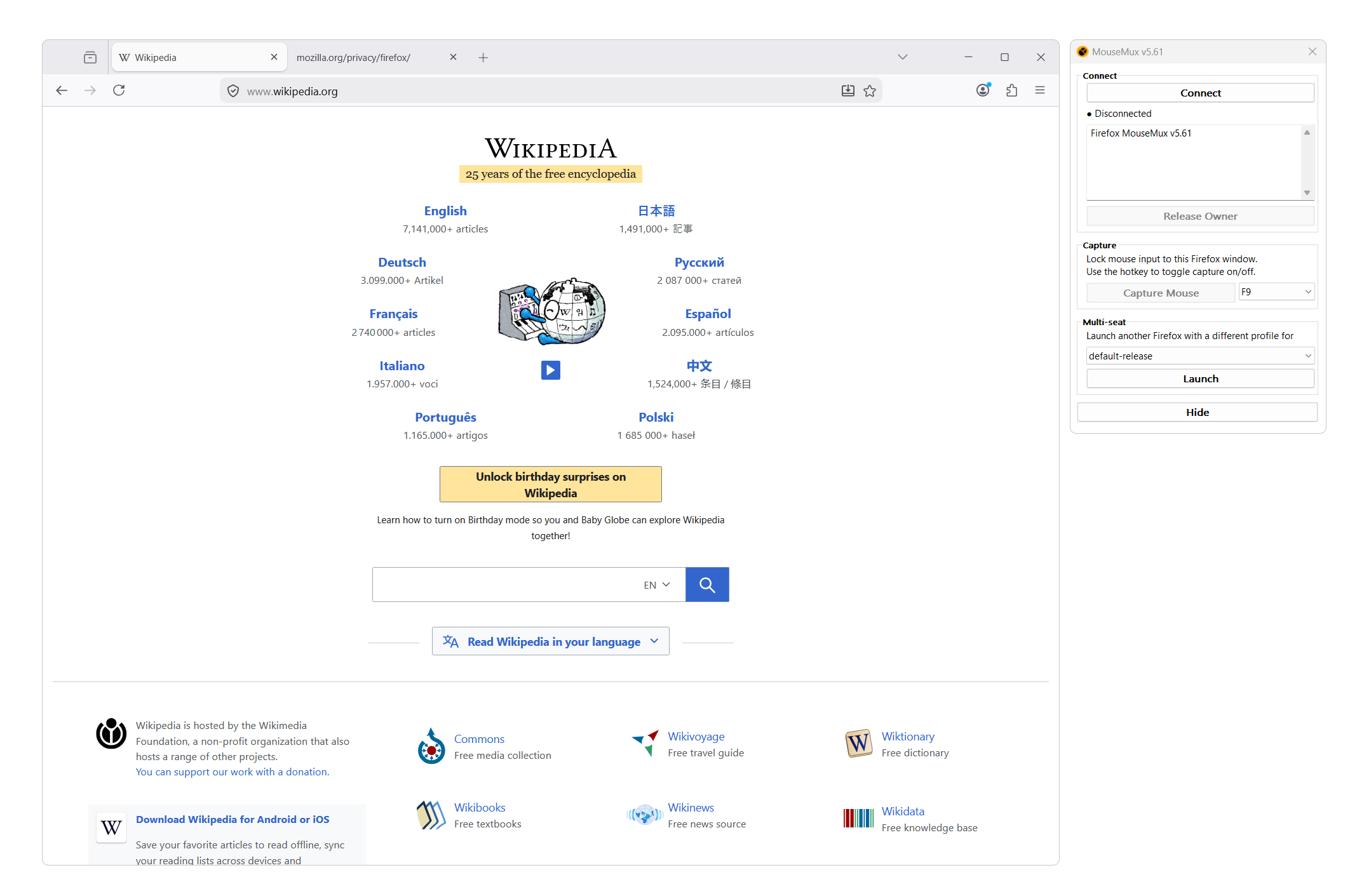
The MouseMux dialog is a panel built into Firefox itself. It appears inside the browser window and shows you who currently owns the window, whether capture mode is enabled, and provides buttons to control your session. Think of it as Firefox’s own control panel for its MouseMux integration. This is separate from the main MouseMux application, which manages all your mice and keyboards independently.
The dialog provides five buttons:
Connect — Connects this Firefox window to the MouseMux server. Once connected, the window can receive input from MouseMux devices and be claimed by a user. If you are already connected, clicking this button disconnects you. Always disconnect before moving on to other windows, especially in switched mode, to prevent stray keystrokes from reaching Firefox in the background.
Release Owner — Releases ownership of the window. The window becomes unclaimed and available for any other user to take over. Use this when you are done with the browser and want to hand it off, or when you want to step away without closing the window.
Capture — Toggles mouse capture mode. When capture is enabled, your mouse and keyboard are locked exclusively to this Firefox window. Your cursor stays inside the browser and all input goes directly to it, as if you had a dedicated computer just for Firefox. This is the recommended setting for a comfortable browsing experience. Without capture, your mouse can still move to other windows, and your keyboard may send keystrokes elsewhere. Next to the Capture button there is a hotkey dropdown that lets you choose a key combination to release capture. This way you can exit capture mode at any time without needing to reach the dialog — just press the configured hotkey and your mouse is free again.
Launch — Opens a new Firefox window with its own custom profile. This is useful when multiple users each need their own browser instance. Each launched window runs with a separate profile, so bookmarks, cookies, history, and extensions are fully isolated between windows. Other users can claim the new window for themselves.
Hide — Hides the MouseMux dialog from view. The dialog takes up space inside the browser window, so hiding it gives you more room to browse. You can bring it back at any time using the keyboard shortcut Ctrl+Shift+M.
Each browser session is independent, but be aware that:
For shared environments, consider enabling Firefox’s automatic private browsing mode or configuring session cleanup policies.
Firefox is a trademark of the Mozilla Foundation. The MouseMux Compliant Edition is a derivative work created to enable multi-seat browser functionality. This distribution includes unmodified Firefox binaries along with MouseMux integration components.
| Version | 2.2.53 |
| Category | productivity |
| Publisher | Mozilla Foundation |
| Platform | win32-create |
| Status | Available |
| Updated | 2026-02-03 |
We can do that! In days, not months. Affordable pricing.
As the creators of MouseMux, we have complete control over every aspect of the platform. We can customize MouseMux to your exact needs: add your branding, run it invisibly in the background, modify behavior, or build entirely new features. Whether you need a custom multi-cursor application from scratch, want to adapt existing software for multi-user collaboration, or require deep MouseMux integration into your workflow, our team delivers.
Trusted by industry leaders